The Ultimate Google Maps Trip Planner Guide (+ Alternatives)
Google Maps is one of the most popular trip-planning apps. But is it the best option for organizing your saved places?


Google Maps is one of the most popular trip planning apps today for travelers and locals alike. Of course, everyone knows Google Maps as a navigation tool — helping users get directions from point A to point B. Yet, Google Maps can also be used to find places, attractions, restaurants, etc. in a given city, and even create lists to organize places you want to visit.
However, Google Maps isn’t the only trip planner Google offers. There’s also Google My Maps, which is a different app entirely that enables users to organize their travels. Both apps — Google Maps and Google My Maps — can be helpful in trip planning (or even just organizing places you want to visit in your home city). That said, outside of the confusing naming structure, neither of these apps are perfect.
In this guide, we’ll cover both Google Maps and Google My Maps in-depth — going step-by-step through each platform and how you can use both for trip planning and organizing places you want to visit. We’ll also touch on the benefits and limitations of each platform while also highlighting a possible alternative to both apps that might be better for your trip planning needs. Let’s get to it!
Google Maps Vs. Google My Maps
It can be confusing, but “Google Maps” and “Google My Maps” are actually two different apps. (Google couldn’t come up with a better name for “Google My Maps”?)
Both, however, can be helpful in travel planning. In a nutshell, Google Maps is a navigation app with the added ability of enabling users to create saved lists. Users can create lists and save any places or attractions they want to visit to those lists.
On the other hand, Google My Maps is a web-based application that is primarily for creating custom maps. Users can add places to a map, mark locations, draw shapes, and add photos and videos.
I find that Google My Maps is best for pre-trip planning rather than finding places in the moment. For example, if you want to plan out a road trip, Google My Maps can be a good solution for mapping out all the places you might want to visit along the way.
Here’s a quick side-by-side comparison:
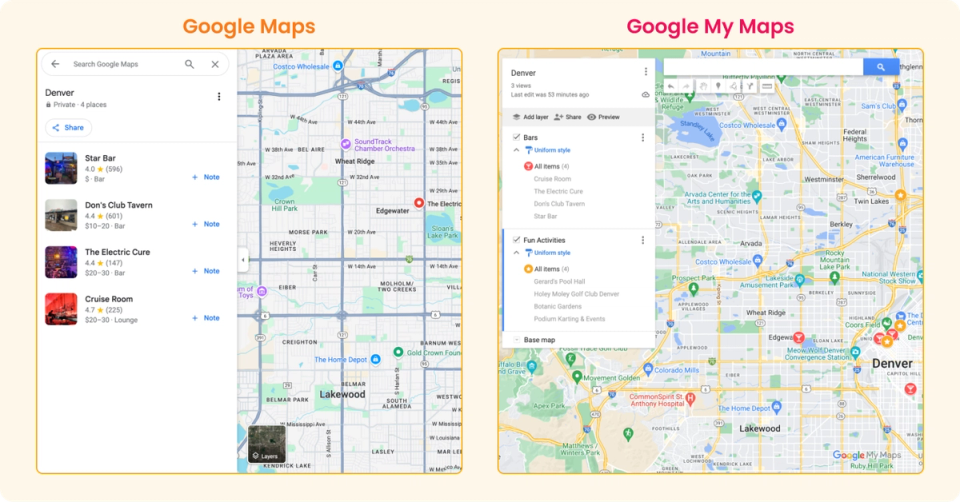
Google Maps Vs. Google My Maps: Pros & Cons
| Google Maps | Google My Maps | |
| Pros | Great for navigation (finding directions to a place). Good for finding places to visit while out and about. Has mobile app. | Good for pre-trip planning. Users can create a custom map with places they want to check out. Layers and custom icons give users flexibility to organize places how they see fit. |
| Cons | Hard to use and search when you have lots of lists created. Icons make your map look cluttered, and again, can make searching for places you’ve saved harder. | No mobile app. Although you can view Google My Maps on mobile, you can can’t edit or add places to your map. Limited information. For instance, you can’t find business’ hours, their website, reviews, or other information that Google Maps has for any specific place. |
Is There A Better Option? Google Maps (+ Google My Maps) Vs. Wandrly
Many travelers resort to a combination of using a notepad on their phone or Google Docs to write down a list of places they are interested in and then use both Google Maps and Google My Maps to organize these places. This process is annoying, inefficient, and time-consuming.
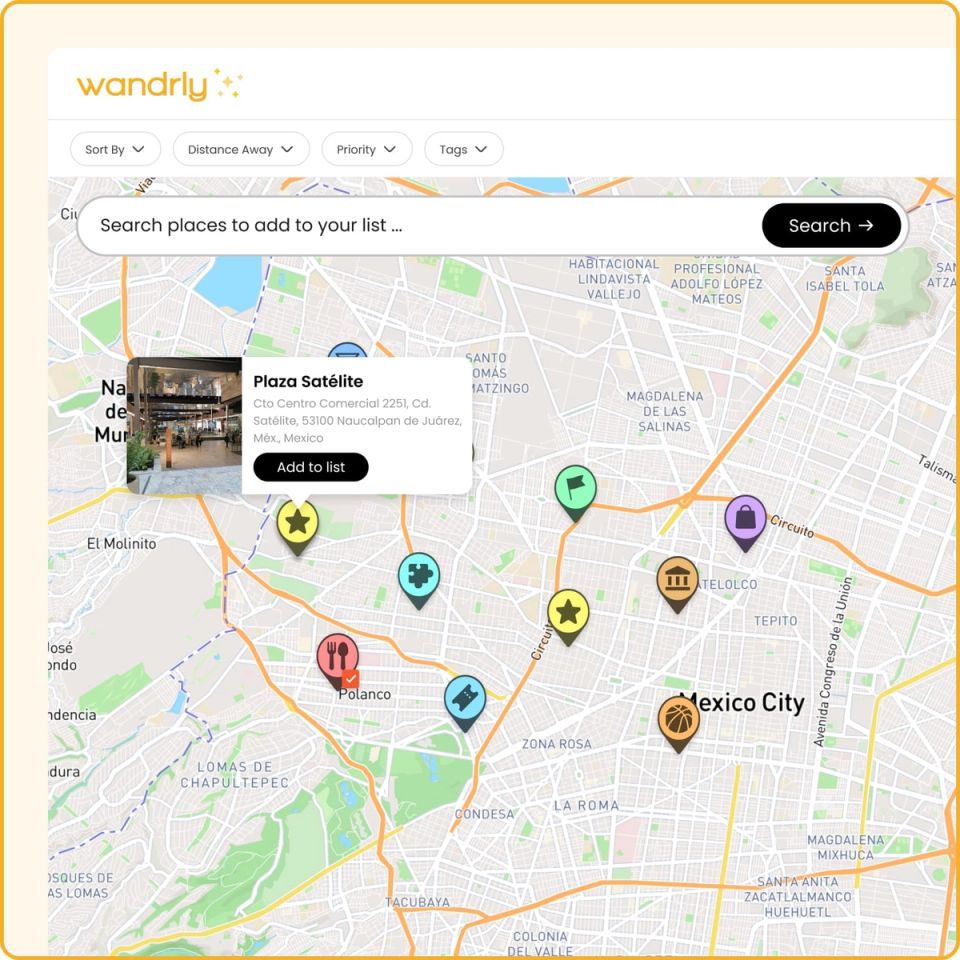
Wandrly Lists are a new way to organize places you want to visit into lists that you create — while also tackling some of the challenges that using Google Maps and Google My Maps present.
Here’s an overview of how Wandrly Lists compare to Google Maps and Google My Maps:
| Google Maps | Google My Maps | Wandrly Lists | |
| Unlimited List Creation | Yes | Yes | Yes |
| List Collaboration (Share With Others) | Yes You can add viewer-only or editors. | Limited You can add viewer-only or editors. | Yes You can add viewer-only or editors. |
| Filter Results | No There are no filter options to filter places within your lists. | Limited While Google My Maps does not have filters specifically, you can organize places within layers, and then enable or disable those layers on your map. | Yes With Wandrly, you can filter your saved places by: Custom tags you’ve added for places Interest level you’ve set (i.e., how interested you are in visiting a specific place) |
| Sort By | Yes Distance Recently Edited | No | Yes Date added (Oldest or newest) Distance away Name (A-Z, Z-A) |
| Tag Management | No | No | Yes With Wandrly, you can create and add custom tags to each place in your list. For instance, you could add a tag like “Indoors” to tag all the indoor places on your lists. Then, you can filter by this tag later (e.g., if it’s a rainy day, to find all the indoor activities on your list). |
| Add Notes For Saved Places | Yes | Yes | Yes |
| Mark Places As Visited | No Google Maps does have location tracking, which keeps track of places you visit automatically. But, if you have this feature enabled, Google Maps keeps track of everywhere you go. This may be a privacy concern for some. Accuracy is also not always 100% correct. | No | Yes With Wandrly, you can manually mark places as visited. |
| Sort By | Yes Distance away Recently edited | No | Yes Distance away Newly added Interest level |
| Easily Identifiable (And Customizable) Icons | No All places in a Google Maps list use the same icon. This can make the map look cluttered and hard to scan at a glance. | Yes However, customizing icons is a manual process. The flip side of that is you have a lot of control over what icons each place uses. | Yes |
| Available Offline | Yes | No | No |
| Notifications | Yes | No | Yes Notifications are sent via email when list collaborators add new places to a list, remove places, or mark places as visited. |
How To Use Google Maps For Trip Planning
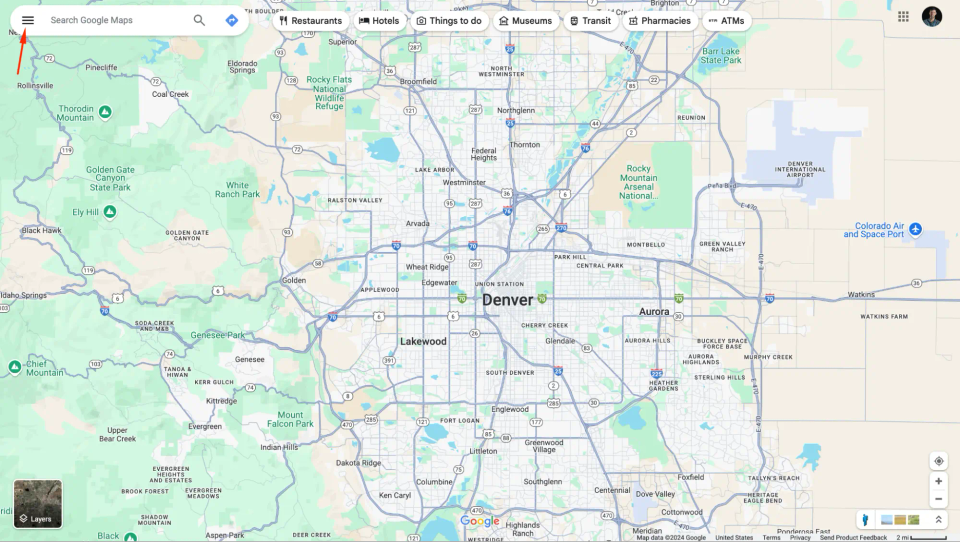
Step 1. Open Google Maps and click on the “Hamburger” menu icon in the search bar:
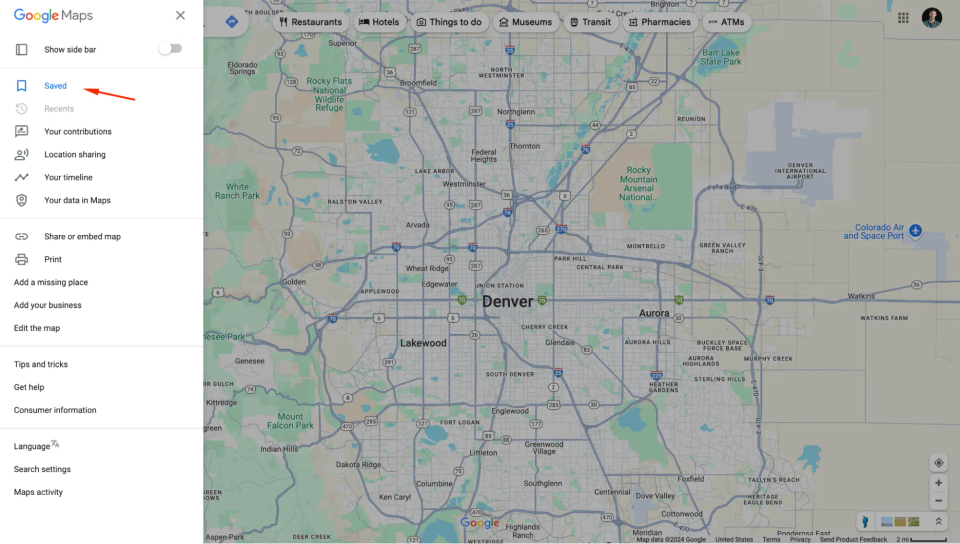
Step 2. Click on “Saved”:
Step 2. Click on “Saved”:
Step 3. Click “+ New list”:
Here, you can create a new list but you will also be able to browse all of your previously created lists.
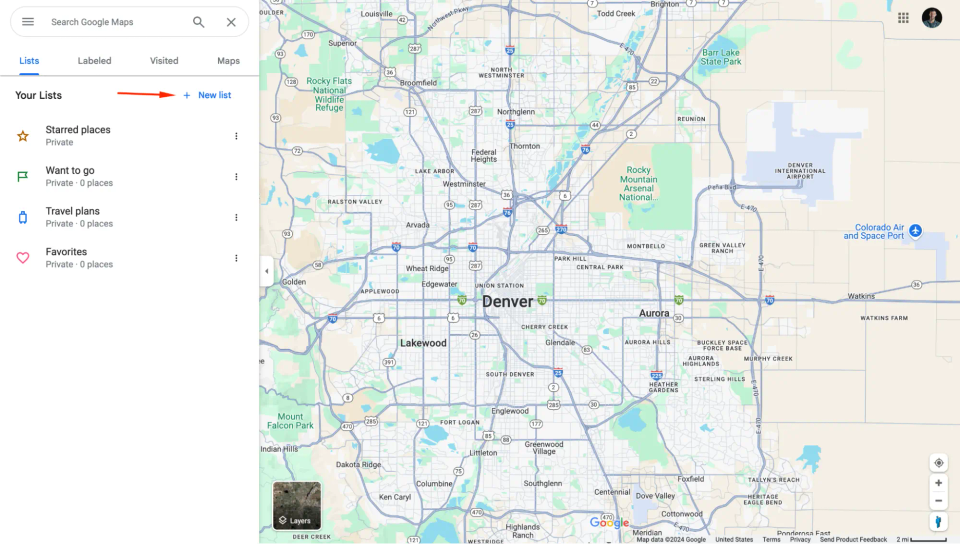
Step 4. Name your list:
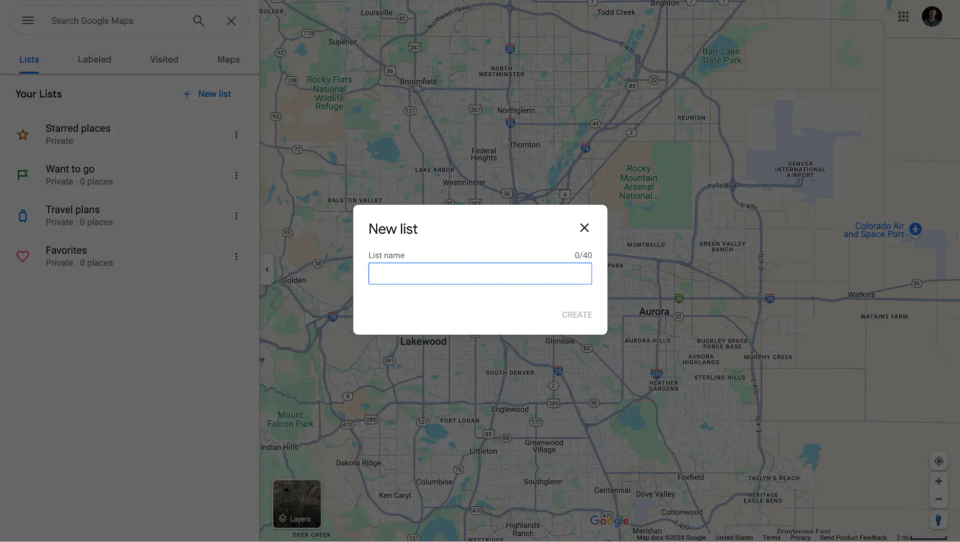
Step 5. Here you can add places and even add a description for your list if you would like:
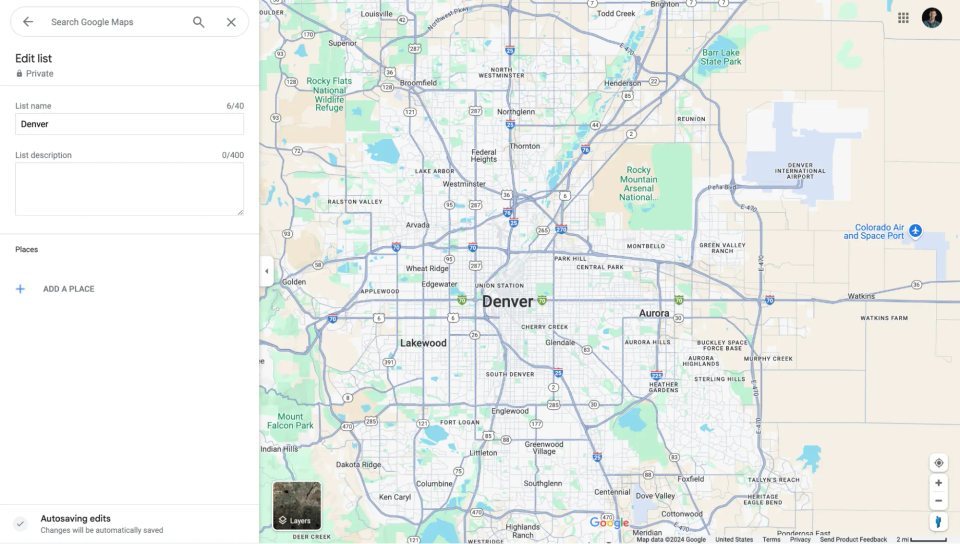
Step 6. Search for a place and click it to add the place to your list:
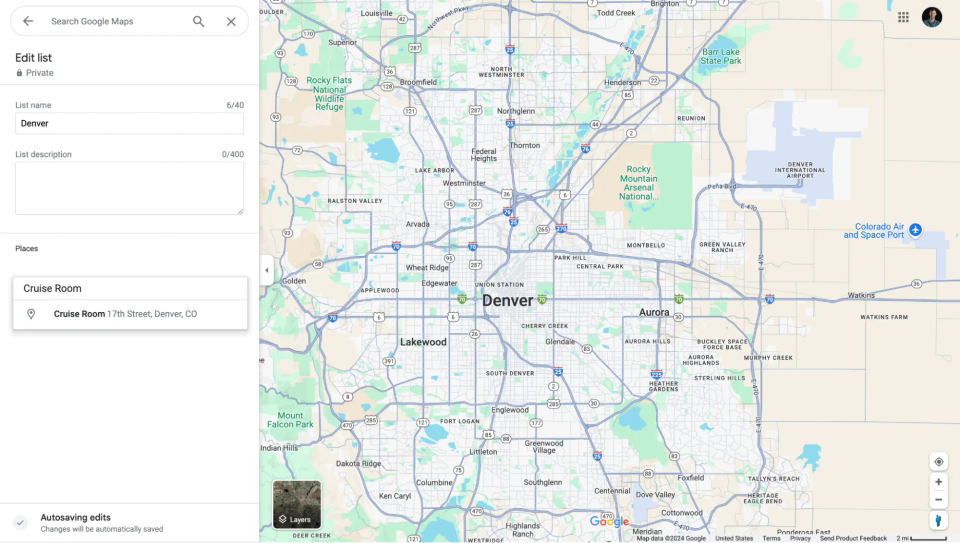
Step 7. Add several places and then see them all in your list:
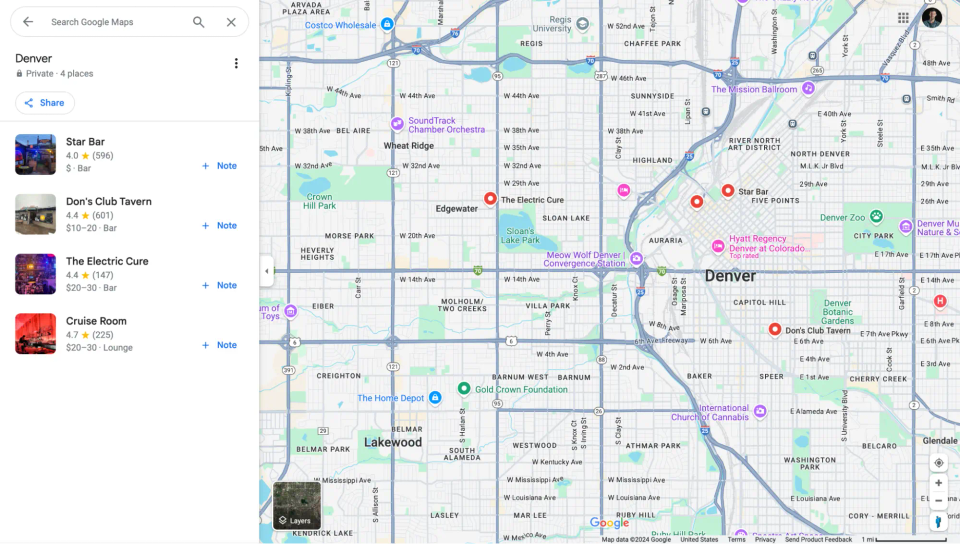
Remember, with Google Maps:
- Every place you add uses the same icon. This can make your map look cluttered and it can be difficult to quickly discern between types of places on your map. Additionally, all of these icons will show on your Google Maps, even when you’re not looking at your list (e.g., when you open the app to get directions).
- Google Maps lacks any filtering options, which can make finding places inside your list difficult. For instance, if you have 50 places on a particular list, you’d have to manually scroll through all of them to find what you’re looking for.
How To Use Google My Maps For Trip Planning
Google My Maps works best on desktop. It is technically possible to view your Google My Maps on mobile but you cannot edit or add places to your map from mobile.
For the purposes of this tutorial, we will cover the process on desktop — highlighting how to create a custom map, how to add places to that map, and how to use other features to better organize your map.
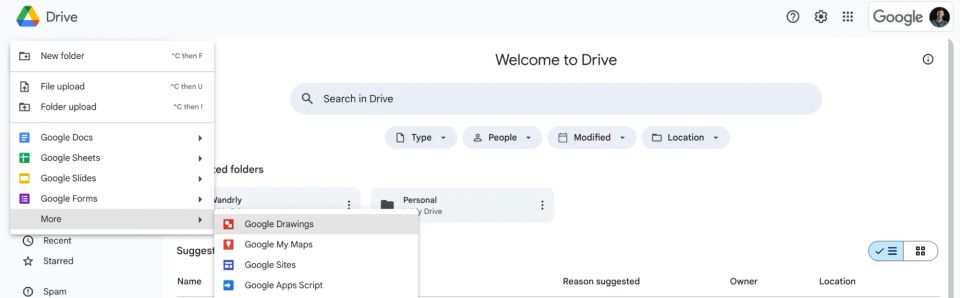
Step 1. Navigate to “Google My Maps” by searching in Google or finding it in your Google Drive
Navigating to Google My Maps is tricky. There’s not an easy way to get to it from the Google Suite. The easiest way is to search “Google My Maps” in Google. However, you can also find it from Google Drive.
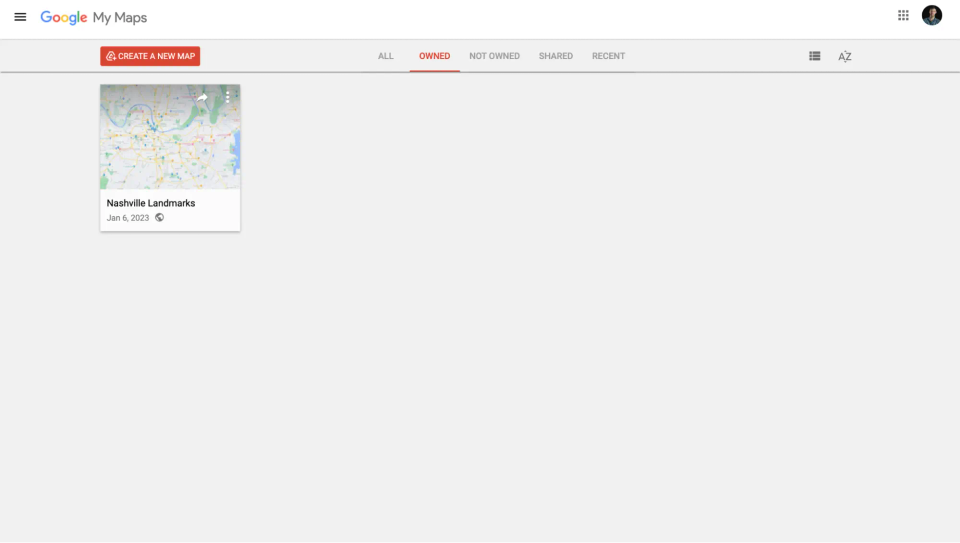
Step 2. Click “CREATE A NEW MAP”:
Step 3: From here, you can name your map:
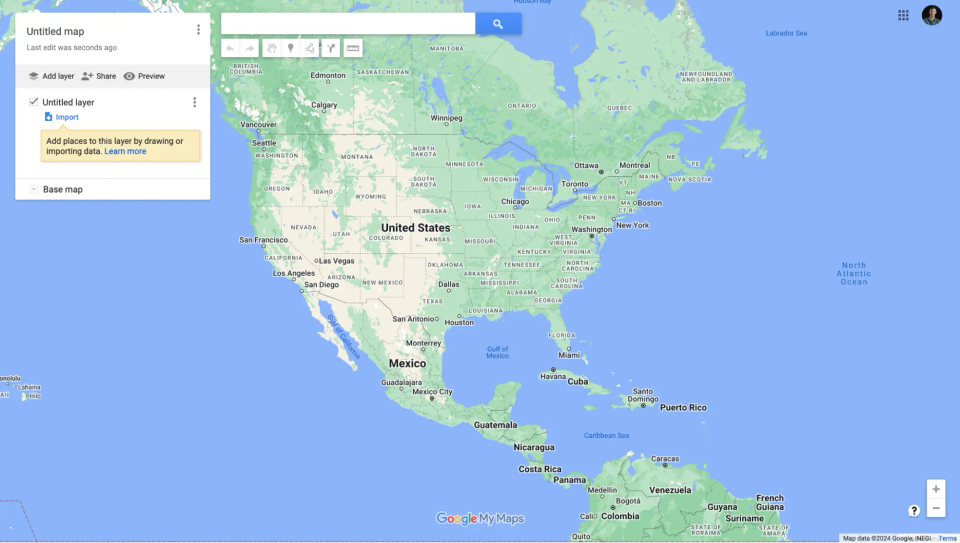
Step 4. Start typing in the search bar to find and add places to your map:
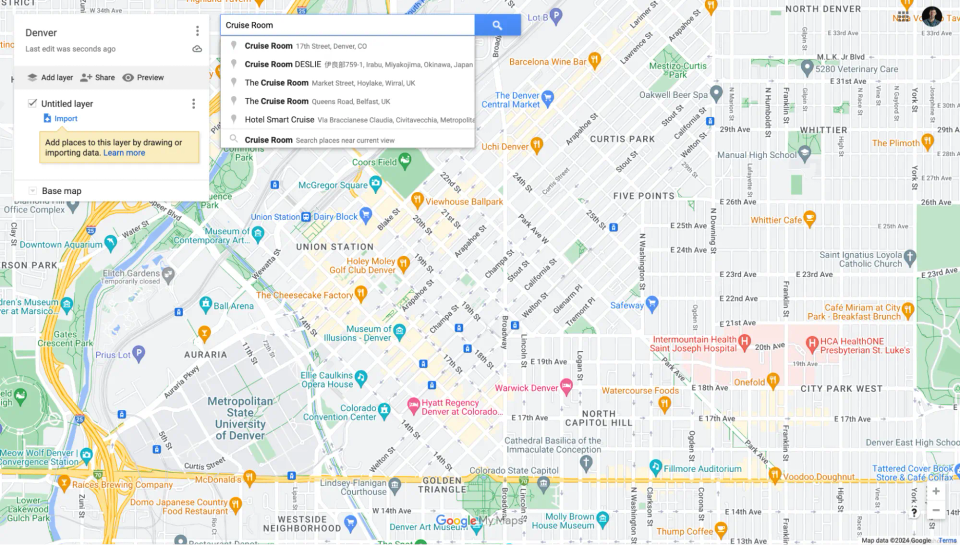
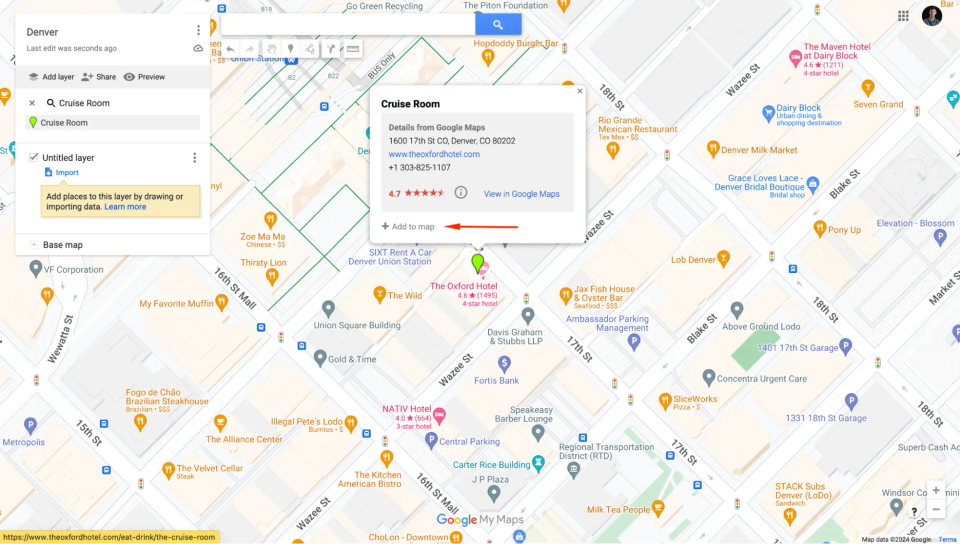
Step 5. Click “Add to map” once you’ve found a place you want to add:
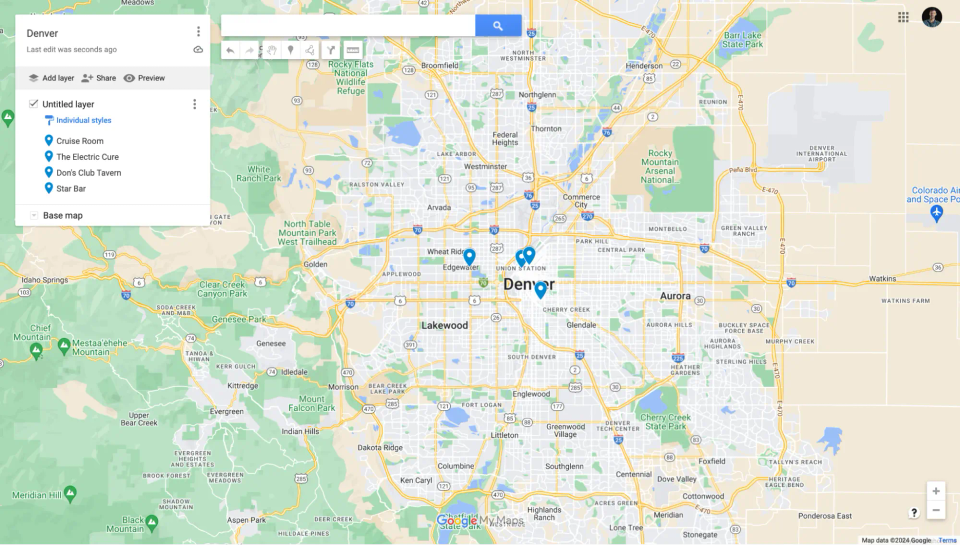
Step 6. Add places to complete your list:
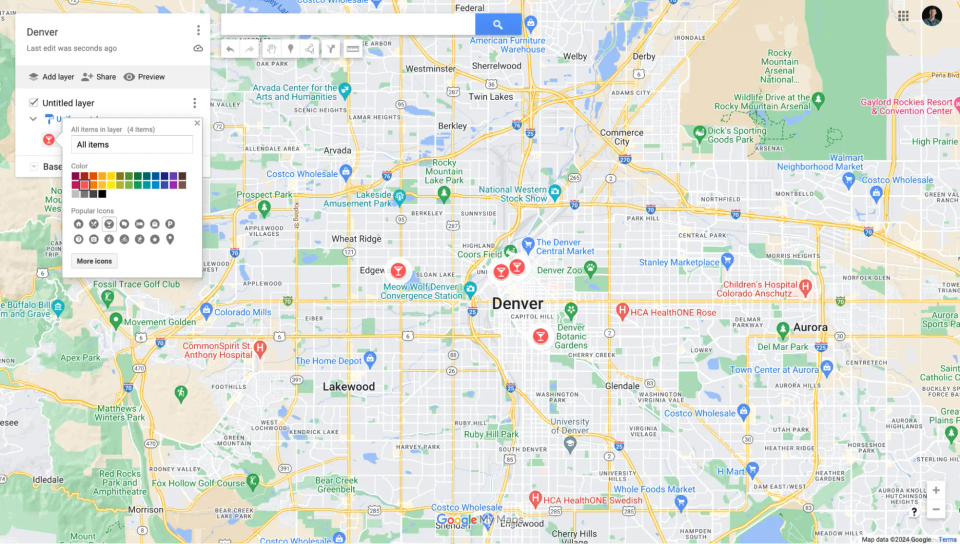
Step 7. Optionally, you can customize the icons for each place or a group of places:
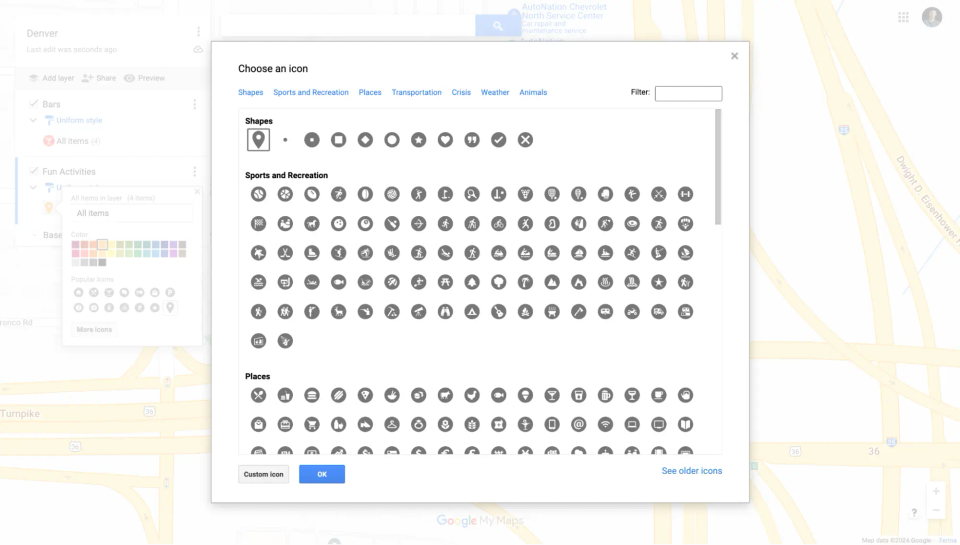
Step 8. You can also create multiple layers to organize your map:
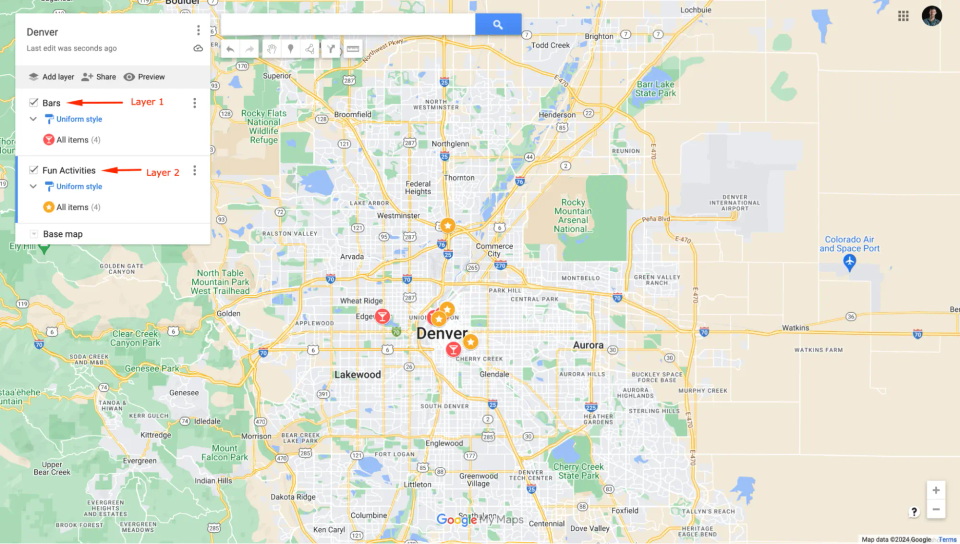
In this example, I created a layer for “Bars” and another layer for “Fun Activities”. These layers are organized with places accordingly. I also added different icons for each layer. I can then enable or disable these layers on the map if I’d like.
Remember, with Google My Maps:
- The mobile experience isn’t great. There is no mobile app. You can view your maps on mobile, but you cannot add or edit places from mobile.
- There is no simple way to visually browse through a list of your saved places (like you can with Google Maps). Instead, you would have to click into each place (also assuming you manually added a photo for that place).
- There is no way to sort of filter through places that you’ve added to your map. You do have the ability to organize places in separate layers, which can somewhat help you to filter out specific places. But there are no pre-existing filter options.
FAQ: Google Maps & Google My Maps
Can you use Google Maps as a trip planner?
Yes, Google Maps can be a good tool for organizing places you want to visit on your trip. For instance, if you’re planning a trip to Rome, Italy, you could create a list called “Rome” and add all the places within that city that you’re interested in checking out.
However, Google Maps is not without its limitations. Adding too many places to your lists can make it hard to find the places you’ve saved and clutter your map. No filtering options currently exist to make filtering through your list of saved places easier.
How can I use Google Maps to create a map with multiple pins for a trip?
In this case, Google My Maps is the better solution. Google My Maps is best for pre-trip planning and can be a great solution for planning road trips. For instance, here is a map of stops and points of interests I created for a 6-day road trip from Rochester, NY to Tucson, AZ:
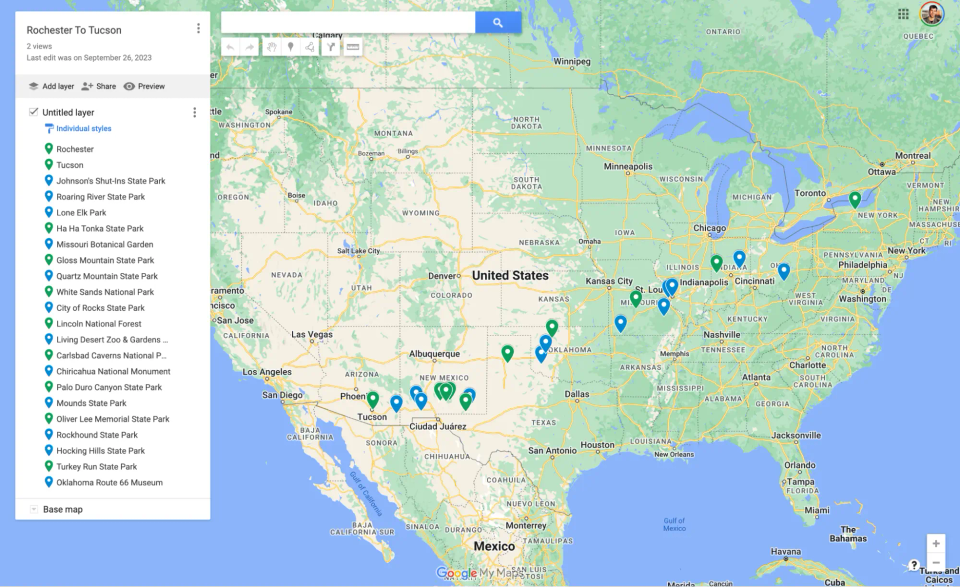
I did my research, looked up places that might interesting to check out along the way, added them all to this map, and then prioritized which ones I wanted to check out (using green icons for the ones I was most interested in). For this use case, Google My Maps works really well. But again, this requires work upfront to research all of these places and then add them to this map before the trip starts.
Is there a route planner like Google Maps?
As mentioned above, Google My Maps works well for road trip planning. But for route planning specifically, here are a few options (*most of these are geared toward business-based route planning, such as delivery services):
Coming Soon: Wandrly Lists (A Google Maps Trip Planner Alternative)
Ditch Google Maps (and Google My Maps) for a better alternative to organizing your trips and places you want to see.
Here’s how Wandrly Lists is a better trip planner …
Create Custom Lists
Create as many lists as you want, add as many places as you’d like to each list, and organize your travel how you want. Lists are a collection of places you want visit. They are not confined to day-by-day or hour-by-hour itineraries.
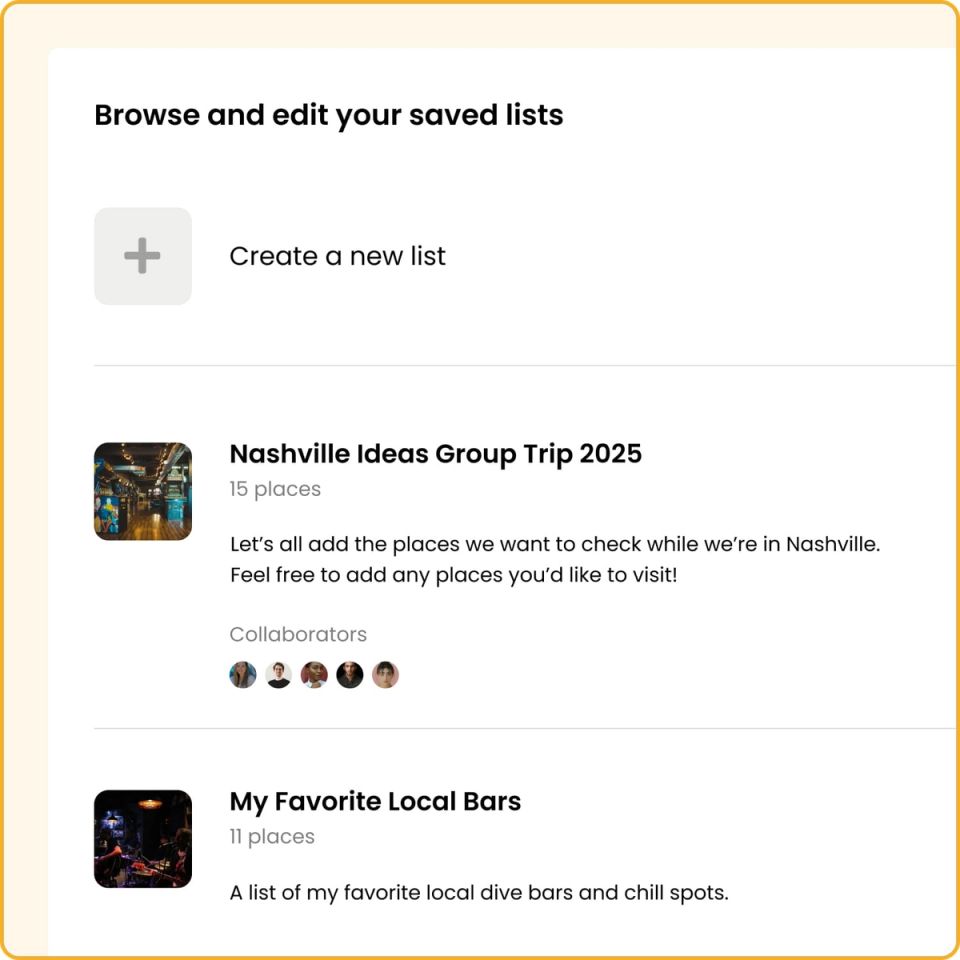
Simply add places you’re interested in, browse places in your lists, and find what exactly what you want to do that day.
Filter, Sort, And Find Exactly What You Want
Wandrly Lists give you the power and flexibility to filter and sort through places that Google Maps simply does not have.
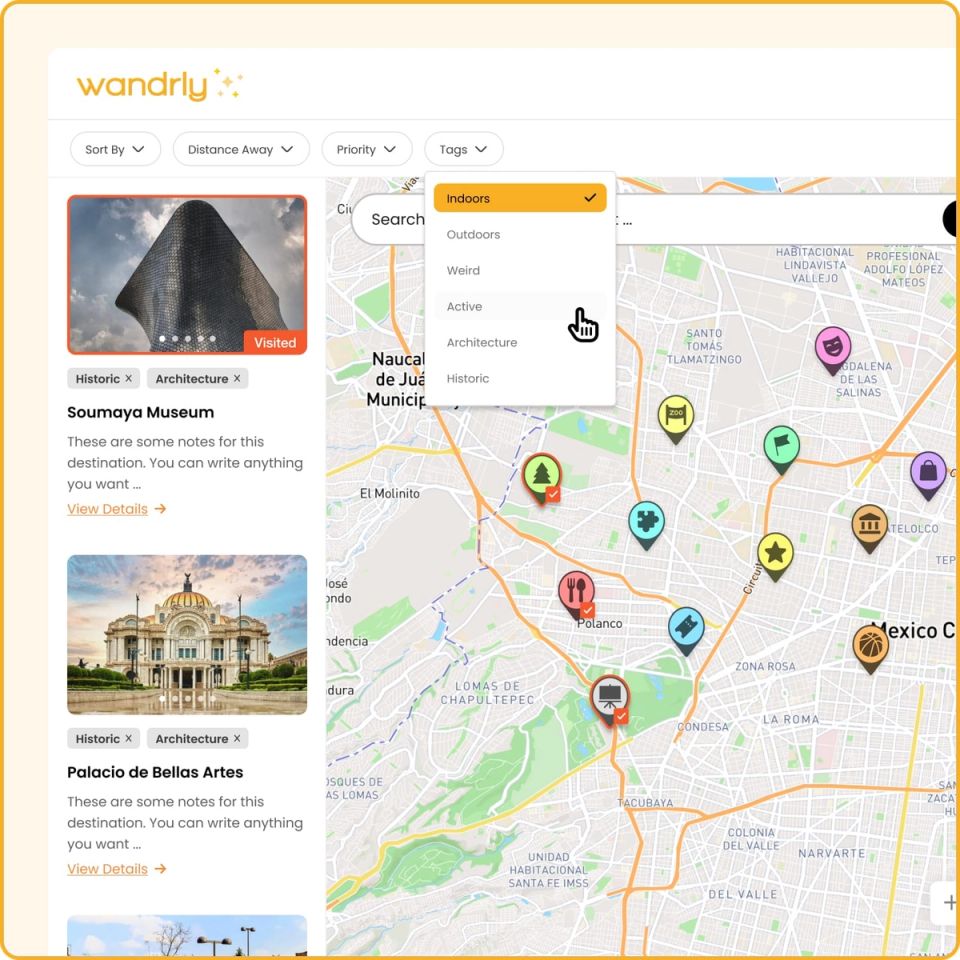
With Wandrly, you can:
- Sort by date added (so you can see the oldest or newest places you added to that list)
- Sort by name (A-Z, Z-A)
- Filter by:Priority - A metric defined by Low, Medium, or High, that you set and can later filter by to find places you’re most interested in visiting.Tags - You can create and add custom tags to each place you add to a list (e.g., Fun, Restaurant, etc.). Then, you can filter by places that have these tags in your list.Distance away - Filter places by distance away from your location.
Share and collaborate with friends, family, and others
Wandrly Lists enable you to invite other people to collaborate on any list you add them to.
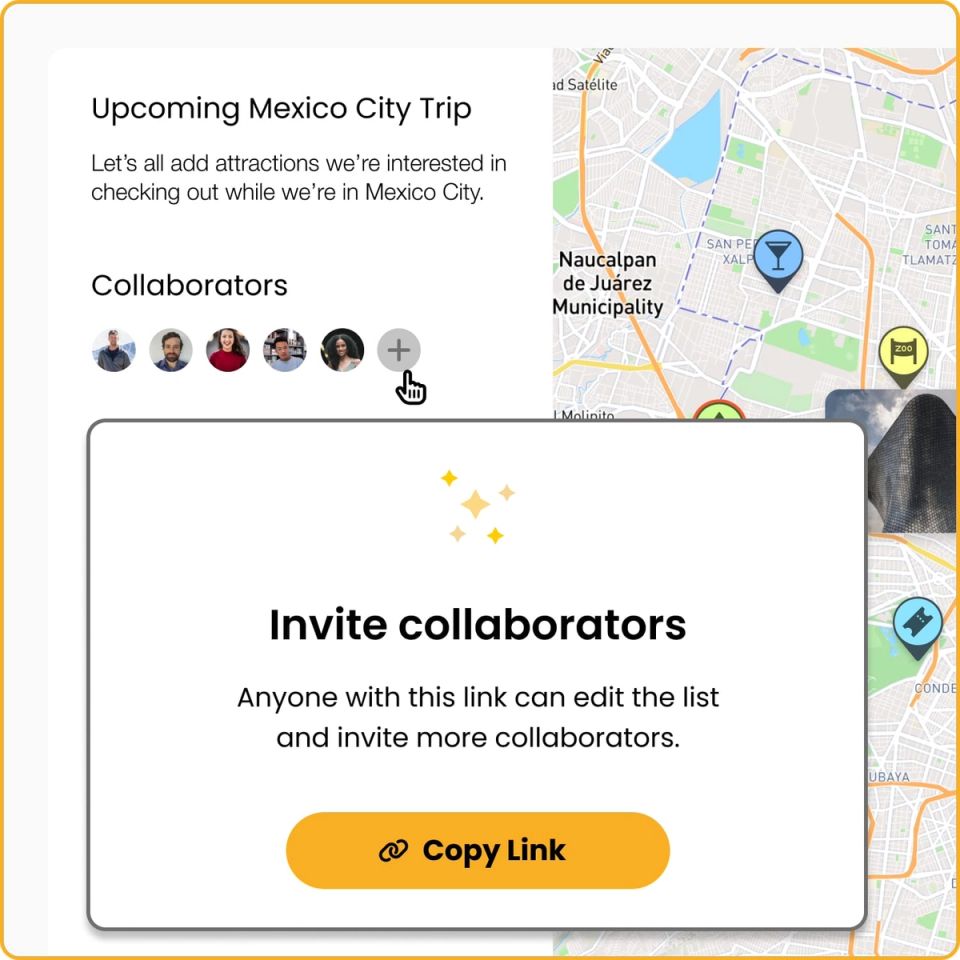
Collaborators can add and edits places on your lists. This makes trip planning between friends and groups easier.
Add notes to places
With Wandrly Lists, you (or your collaborators) can add notes to each place — so you can remember why you added that place or add any key details you want to save.
Mark attractions as visited
With Wandrly Lists, you can keep track of all the places that you’ve been by marking places as visited. Additionally, you can then filter places in your lists by whether or not you’ve been there.
Scan by map view
All your saved places are easily visible on your map — distinguishable by icons.